 Life Dashboard
How do I get Android screen time per app into Home Assistant?
Life Dashboard Companion, an open-source Android app, reads Android's usage statistics, the same numbers Digital Wellbeing shows, and sends the minutes per app to Home Assistant on a schedule. With the Life Dashboard integration you get today's and yesterday's screen time, the most used app, the top five apps, a sensor per app if you want one, and every day in long-term statistics. Over MQTT you get the same totals without the sensors per app. Automations can then warn you when you pass a limit you set yourself.
What you need
- An Android phone or tablet with Android 8.0 or newer. Health Connect isn't needed.
- Life Dashboard Companion for Android, from GitHub Releases or Obtainium. The install options list every source.
- Home Assistant with the Life Dashboard integration, paired as in the Health Connect guide, or an MQTT broker that Home Assistant uses. The sensors per app need integration 0.9.0 or newer.
Set it up
- When you pair with the QR code, include Screen Time under Send from.
- Open the Screen Time tab. The card at the top says Usage access needed. Tap Allow, find Life Dashboard in Android's list, switch access on and go back. The card now says Usage access granted.
- Under Day Boundary, check Day starts at. It's 04:00 by default, so phone use after midnight counts toward the day before. Switch off Enable day boundary for midnight to midnight.
- Under Apps to send, choose All, All except or Only. The list shows the apps you used in the last 30 days.
- Tap Save Changes, then Sync Now. On this tab Sync Now uses the saved settings, so save first.
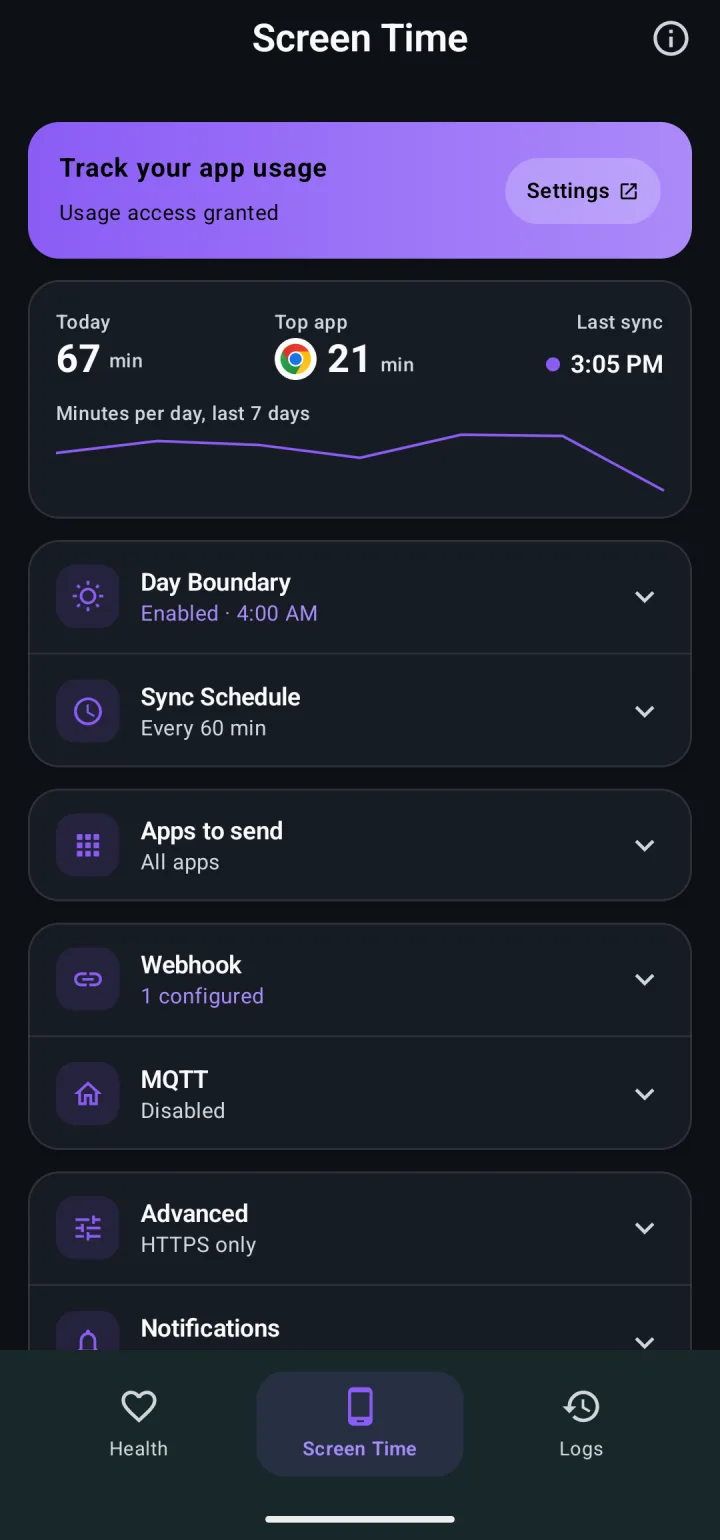
Screen time has its own Sync Schedule, separate from health data. Home Assistant only sees a new number after a sync, so for limits pick Every X minutes at 15, the shortest Android allows.
What you get
| Integration sensor | Over MQTT | What it holds |
|---|---|---|
sensor.<phone>_screen_time_today | Screen Time Today | Minutes today, with the top five apps in top_apps |
sensor.<phone>_screen_time_yesterday | Screen Time Yesterday | Yesterday's final total |
sensor.<phone>_most_used_app_today | Screen Time Top App Today | The app with the most minutes today |
sensor.<phone>_<app>_screen_time | Not available | One app's minutes today, with week_minutes |
Rules for the sensors per app:
- They're created disabled. Open the phone's device, show the disabled entities and enable the apps you care about.
- An app gets a sensor once it has 5 minutes over the days the last sync carried. A phone gets 50 app sensors at most, disabled ones included, most used apps first.
- A sensor belongs to the app's package, so it survives a rename. A sensor you delete stays deleted.
- An app you didn't open today reads 0, so a daily trigger is ready again the next day.
Total screen time per day also goes into long-term statistics; the sensors per app keep the recorder's usual 10 days. Screen time in detail covers all attributes.
Limits and alerts
A notification when today passes three hours, using the companion app's notify action:
triggers:
  - trigger: numeric_state
    entity_id: sensor.<phone>_screen_time_today
    above: 180
actions:
  - action: notify.mobile_app_<phone>
    data:
      message: Three hours on the phone today.
Swap in sensor.<phone>_youtube_screen_time and above: 60 for a limit on one app. The screen time limits recipe adds a version for MQTT and a check for late-night phone use.
Several phones in one Home Assistant
Add the integration once per phone, and give each a clear name. The entity IDs follow the name, so a tablet named “Living room tablet” gives sensor.living_room_tablet_youtube_screen_time next to your phone's sensors. Each phone has its own device, secret and statistics.
Over MQTT, give each phone a name under Advanced > Phone name. A named phone becomes its own device, such as Life Dashboard Companion (Pixel 8). Two phones without a name publish to the same sensors.
Everyone with access to Home Assistant and its backups can see which apps were used and when. On each phone, Apps to send decides what leaves it: an app filtered out is not named in anything sent, though its time still counts in the day\'s total.
What it measures
- Foreground time per app, in whole minutes. Music playing in the background doesn't count.
- System UI and the launcher are left out, and so are apps used for one minute or less that day.
- Every sync sends the last 7 days again, so a day still in progress at one sync is corrected by the next.
- The app reports minutes. It doesn't block apps or set limits on the phone itself.
Screen time doesn't need Health Connect. Any phone or tablet with Android 8.0 or newer works.
Get the Android app Open the integration in HACSCommon questions
Why doesn't the total match Digital Wellbeing exactly?
Digital Wellbeing counts from midnight, while the app's day starts at 04:00 by default. Apps used for a minute or less are also left out.
Does this work on an iPhone?
No. iOS keeps Screen Time data inside a sandbox that can't send anything out, so the iPhone app has no screen time.
Can I keep some apps private?
Yes. Pick them under All except in Apps to send. Their names are not sent. The day's total still includes their time, so with one app left out, its minutes can be worked out from the total. The sensors then show the minutes of the apps you send, and all_apps_minutes holds the total of every app.
Can I send screen time to my own server instead?
Yes. The Screen Time tab has its own webhook list, and the payload is JSON with minutes per app per day. See the webhook guide.