 Life Dashboard
How do I get Apple Health data into Home Assistant?
Install the Life Dashboard integration in Home Assistant from HACS and Life Dashboard Companion on your iPhone, then pair the two with the QR code the integration shows. Tap Sync Now, and your steps, heart rate, sleep, weight and workouts arrive as sensors. A backfill of 30, 90 or 365 days fills long-term statistics, each day on its own date.
It works with whatever writes to Apple Health: the iPhone itself, an Apple Watch, and the apps of other watches, rings and scales that save their data there. Both parts are MIT licensed. There's no account and no Life Dashboard server: the iPhone posts straight to your Home Assistant, and the app only reads Apple Health, it never writes to it.
iPhone or Apple WatchApple HealthLife Dashboard CompanionHome Assistant
What you need
- An iPhone with iOS 17 or newer.
- Home Assistant 2026.3 or newer, with HACS, for the Life Dashboard integration. The iPhone app needs the integration 0.7.1 or newer; HACS installs the latest.
- Life Dashboard Companion for iPhone. It's on the App Store for €6.99 once (US$5.99), no subscription. Building it from source with Xcode on a Mac stays free.
Set up Home Assistant first: the app's setup scans the QR code the integration shows.
Set it up
- In HACS, search for Life Dashboard, or use Open in HACS. Download it and restart Home Assistant.
- Go to Settings > Devices & services > Add integration, search for Life Dashboard and give the iPhone a name. Check the Home Assistant address field: it's the address the iPhone sends to. iOS allows plain
http://only to an IP address, a.localname such ashomeassistant.local, or a name without a dot, sohttp://192.168.1.20:8123works andhttp://ha.lan:8123doesn't. For anything else, usehttps://or Home Assistant Cloud. The dialog then shows a QR code.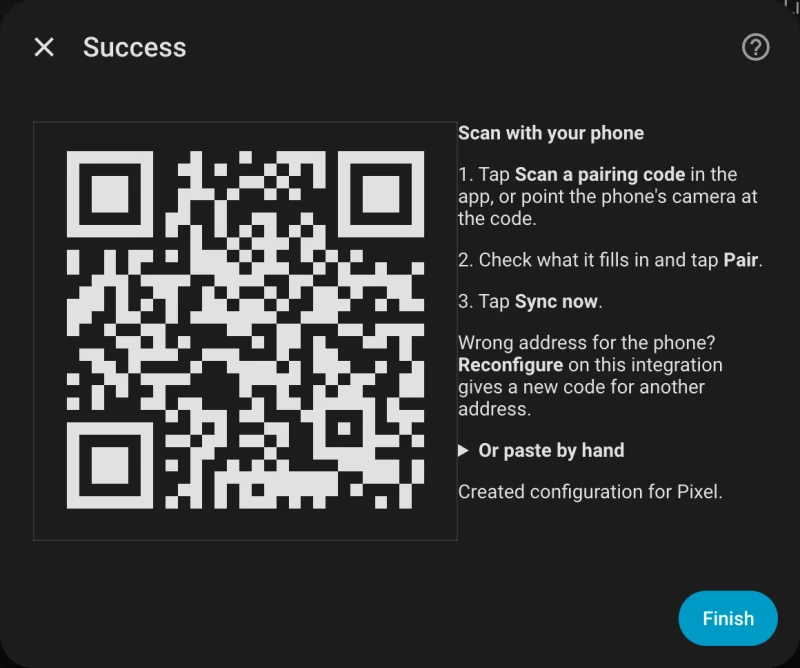
- Install and open Life Dashboard Companion. At the step about where your data should go, tap Scan a pairing code, scan the code and tap Pair. The app sends one test ping, so the iPhone appears in Home Assistant right away. The iPhone's camera works too: it opens the pairing page in Safari, and a button there hands the code to the app.
- When iOS asks for access to the local network, allow it. Without it, nothing reaches a Home Assistant at home.
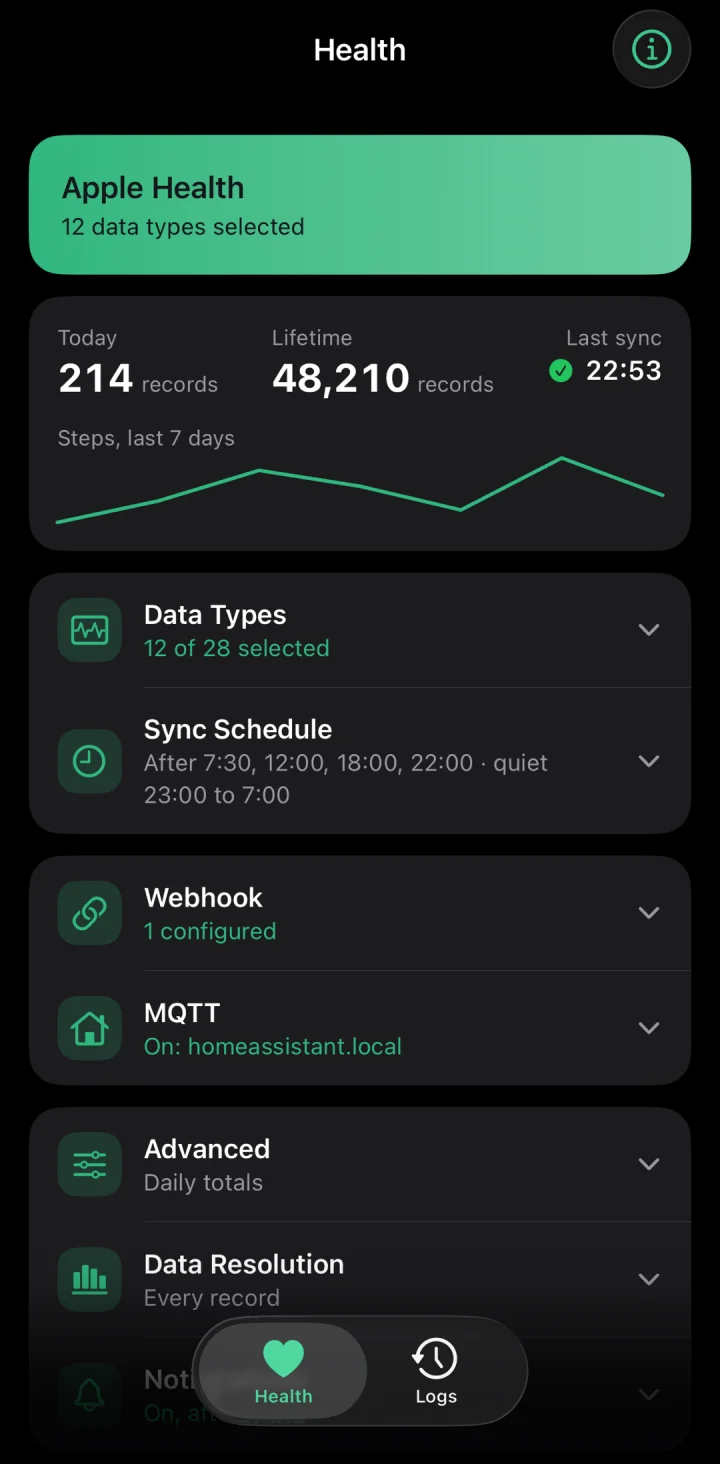
- Pick your data types: the essentials, all 28, or none yet. Then allow Apple Health access. When a type is on that iOS hasn't asked about yet, the green banner on the Health tab shows Grant. iOS never tells an app whether you allowed reading, so a type you declined just sends nothing; change it in the Health app under your profile, Apps, Life Dashboard.
- Tap Sync Now. The iPhone appears under Settings > Devices & services > Life Dashboard, with a sensor for each type it sent. A type's first sync sends its last 7 days.
- For older data, tap Backfill on the Health tab and pick 30, 90 or 365 days. It runs while the app is open and the iPhone is unlocked, and keeps the screen on meanwhile. On iOS 26 it keeps going when you switch apps and shows its progress in the system UI.
What you get
- Sensors for 20 of the 28 types, with blood pressure as two: today's steps, distance, active calories and total calories (such as
sensor.alex_s_iphone_steps_today), and the latest heart rate, resting heart rate, HRV, last sleep, weight, height, blood pressure, blood glucose, oxygen saturation, respiratory rate, body temperature, basal body temperature, body fat, lean body mass, VO2 max and the last drink. Each latest value carries the time it describes and the app or device that wrote it. - Workouts: the last workout, and the minutes of today and yesterday, with every session's kind, start and end.
- History in long-term statistics: one value per day for steps, distance, calories, sleep, exercise and mindfulness minutes and hydration, and an hourly mean, minimum and maximum for heart rate, weight and the other readings. A backfill lands every day on its own date.
- No double counting. Steps, distance and calories come from Apple Health's own statistics, as the Health app counts them, so a walk recorded by both the iPhone and the Watch counts once.
Meals, cycle tracking entries and workout details are events rather than values, so they get no sensor. A webhook of your own gets them in full.
Graphs and a dashboard
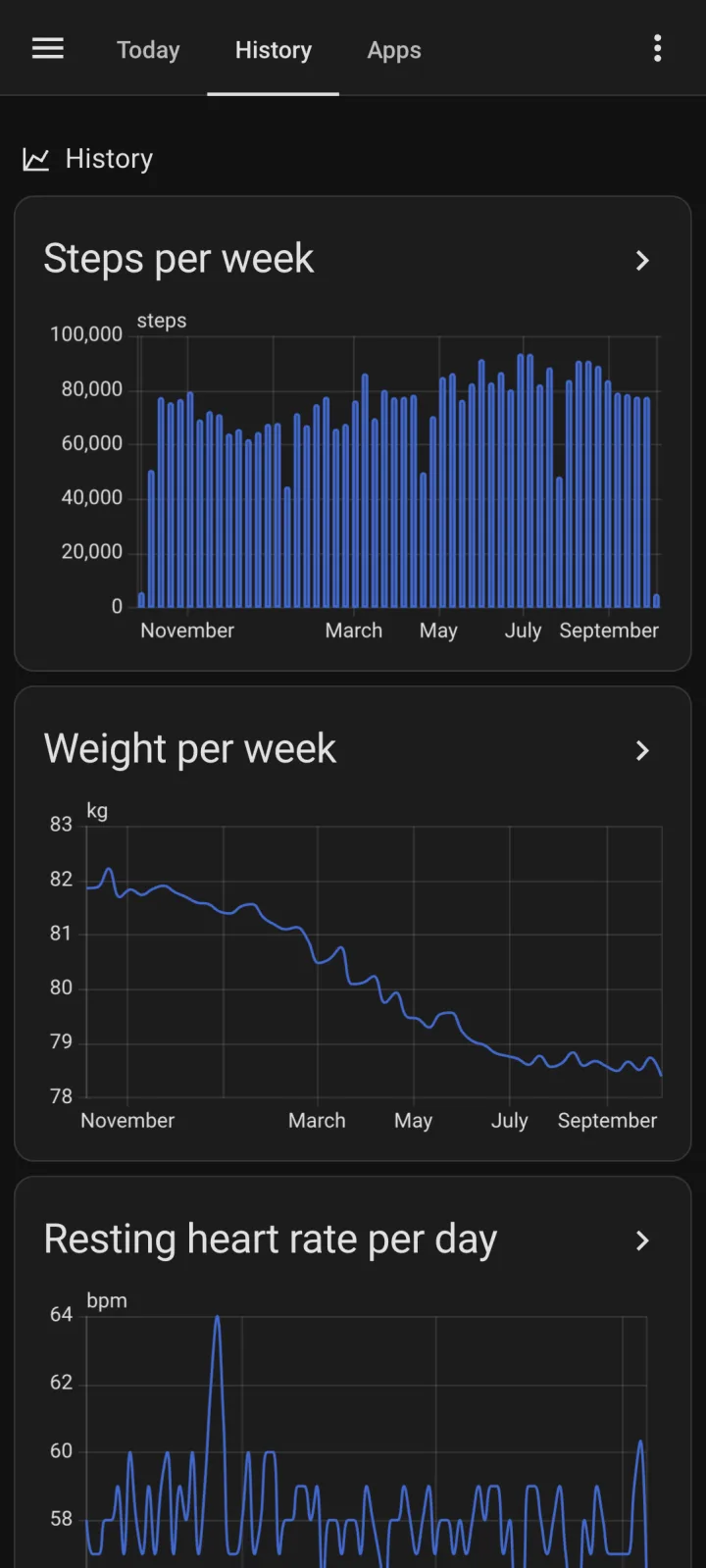
A sensor's own history shows when each value arrived, so after a backfill it puts everything on today. Chart the statistic instead, with the Statistics graph card. The statistics show up in its entity picker under the iPhone's name:
type: statistics-graph
title: Steps per week
chart_type: bar
period: week
days_to_show: 90
stat_types:
  - change
entities:
  - life_dashboard:<entry>_steps   # pick "Alex's iPhone steps" from the picker
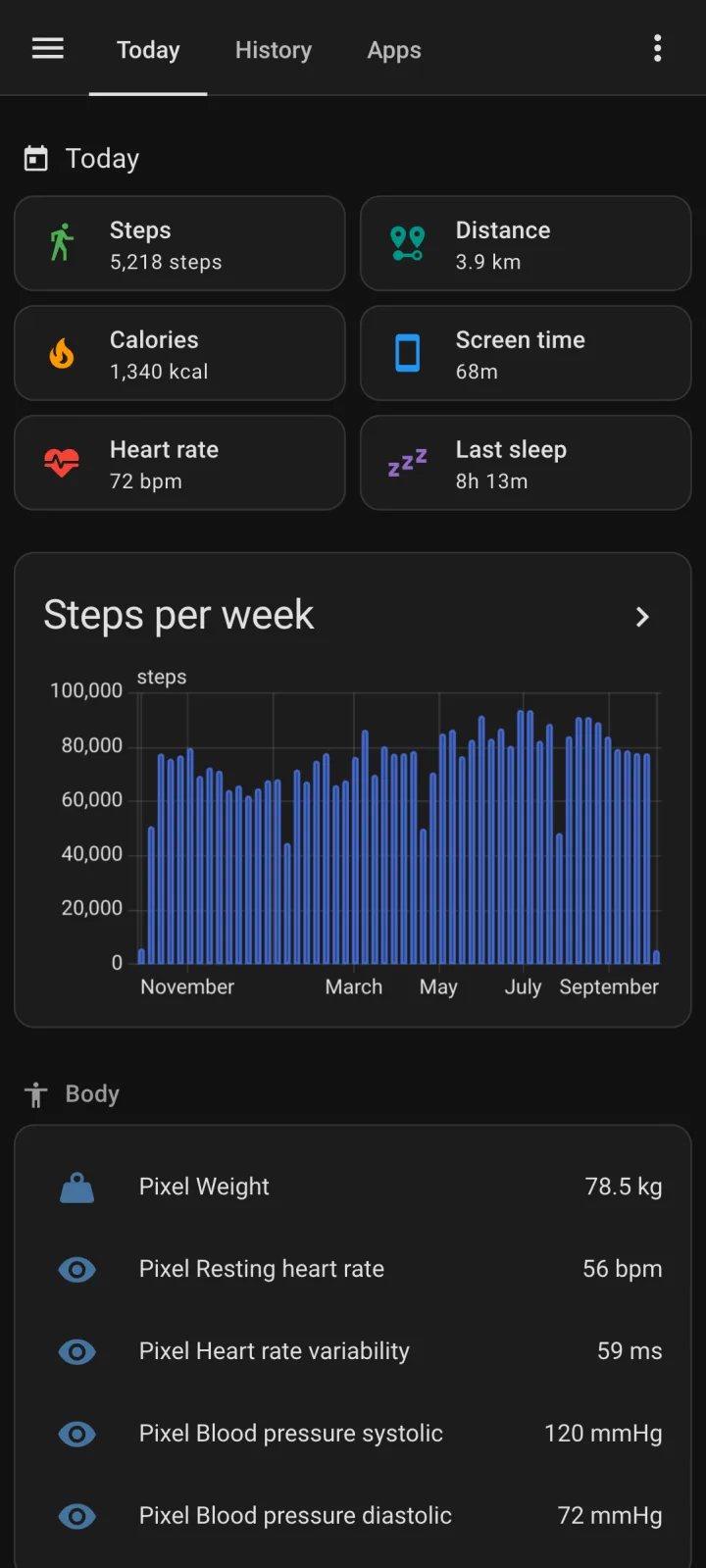
The integration's example dashboard is a view for one phone, to paste into a new dashboard's raw configuration editor. Replace owen_s_pixel in the entity IDs with your iPhone's name, and the statistic IDs with the ones the picker offers. Drop the screen time cards, since an iPhone sends no screen time, and the tiles for types you don't sync. Sensors and statistics lists every entity.
When syncs run
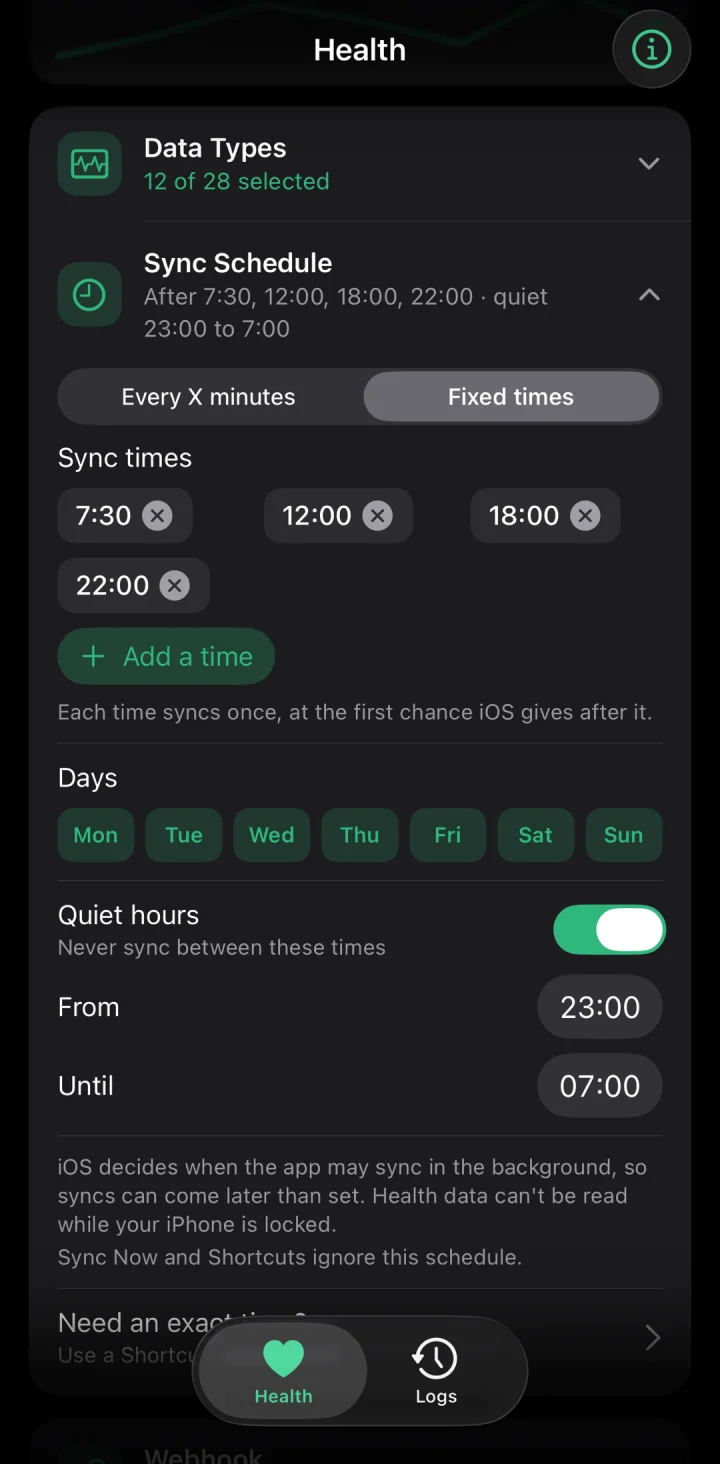
Set an interval of 15 minutes or more (60 by default) or fixed times of day, with weekdays and quiet hours. iOS decides when an app runs in the background, so a fixed time means "not before": the sync runs at the first chance iOS gives after it. Background App Refresh must be on for the app, and Low Power Mode switches it off.
For a sync at an exact minute, make a Shortcuts automation at that time that runs Sync Health Data. The same action is behind the home screen widget, a Control Center control on iOS 18 and newer, and Siri.
The Home Assistant companion app's Health sensors
The Home Assistant companion app for iOS reads Apple Health too. Its Apple Health sensors (#5272, #5638) cover steps, heart rate, weight, blood pressure, sleep stages and more, each as one sensor with today's total or the newest reading. Their history in Home Assistant starts the day you switch them on, and workout details, meals and cycle tracking aren't among them.
They're enough when you want today's steps or the latest weight in an automation or on a tile, and a chart from the day you switched them on is fine. Life Dashboard adds the 28 types with every record and the app or device that wrote it, a backfill of up to a year with each day on its own date, and MQTT or a webhook next to Home Assistant. Keep the companion app either way: it does presence, notifications and device sensors, and the two run side by side.
An Android phone in the same house
An iPhone and an Android phone send the same payload, so one integration takes both. Add the integration once per phone and pair each with its own QR code; each becomes a device of its own. The Android phone uses Life Dashboard Companion for Android, which reads Health Connect and also sends screen time per app; the Health Connect guide has its steps.
MQTT as the alternative
With an MQTT broker already running, switch on Enable MQTT publishing under MQTT on the Health tab instead. A device named Life Dashboard Companion (iOS) appears with 21 sensors for the same 20 types, through MQTT Discovery and without YAML. Pick one route: running both gives you two devices with the same numbers.
| Feature | Life Dashboard integration | MQTT |
|---|---|---|
| Setup | HACS, then a QR code | Enter your broker |
| History | Every day, up to a year back, through backfill | From the first sync on |
| Workouts and mindfulness | Minutes per day | No |
| Workout sensors | Yes | No |
| An Android phone too | Its own device next to it | Its own device and base topic |
Limits
- iOS encrypts Apple Health while the iPhone is locked, so a sync that iOS starts then waits for the unlock, and a backfill pauses.
- A home network address only syncs at home. What can't be delivered waits in a queue on the iPhone for the next sync. A public HTTPS address or Home Assistant Cloud works away from home; with Home Assistant Cloud, the payloads pass through its servers on the way.
- There's no screen time on an iPhone: iOS shows Screen Time data only inside a sandbox that can't send anything out.
- Data from an Apple Watch arrives once the watch has synced with the iPhone.
Two installs: the integration from HACS and the app on your iPhone. After that, pair with one QR code and run a backfill.
Open in HACS Get the iPhone appCommon questions
Does it work when the iPhone is locked?
Not while it's locked. iOS encrypts Apple Health then, so no app can read it. A sync that starts while the iPhone is locked waits until you unlock it, and sends everything that came in meanwhile.
Why does a sync not run at the exact time I set?
No iOS app can run at a chosen minute in the background. iOS decides when, so a fixed time means "not before". For an exact time, a Shortcuts automation at that time runs Sync Health Data. Also check that Background App Refresh is on and Low Power Mode is off.
Can Home Assistant write back into Apple Health?
No. The iPhone app asks for read access only and never writes into Apple Health. Writing scale and blood pressure readings from Home Assistant is an Android feature, into Health Connect.
Do I need iCloud or an Apple Developer account?
No Apple Developer account for the App Store version: you buy it once, like any other app. The app reads Apple Health on the iPhone and posts straight to your Home Assistant. Building it yourself works with a free Apple Account, but then you run it from Xcode again every 7 days; a paid developer account signs it for a year.
Do I get a year of history right away?
Yes, if Apple Health holds it. Run Backfill with 365 days, and each day lands on its own date in long-term statistics. The sensors themselves only show the newest value.
I deleted a record in Apple Health. Does Home Assistant keep it?
The next sync names the deleted record. A deleted workout leaves the workout sensors, and steps, distance and calories follow Apple Health's own day totals, which every sync sends for today and the two days before. A webhook of your own gets every deletion, to remove the record from your own storage.